Using keyboard shortcuts helps you increase your typing speed, saves handsome amount of time and also relieve hands from that pain caused by using mouse repetitively. CTRL+C and CTRL+V are the most commonly used keyboard shortcuts but there are many others to increase productivity.
We have compiled 20 lesser known Windows Keyboard Shortcuts categorized into their area of use that are incredibly helpful in increasing productivity as they make common daily tasks a lot easier.
Global Windows Shortcuts
Win+1, 2, 3, 4,5 etc. will open each program in your task bar. It is helpful in a way that it keeps most recently used programs at the beginning of your task bar so you can open them one right after another. This also works in Windows Vista for the quick launch icons.
 Win+Alt+1, 2, 3,4 etc.
 will open the jump list for each program in the task bar. You can then use your arrows to select which jump list option you want to open.
 Win+Home
 minimizes all programs except current the window.
Win+M minimizes all open windows.
Win+B selects the system tray which is not always useful but can come in very handy if your mouse stops working.
 Win+Up/Down
 maximizes and restores down the current window so long as that window has the option to be maximized. It is exactly the same as clicking on the middle button on your windows.
Alt+Esc is similar to Alt+Tab but switches windows in the order they were opened and does not have the fancy window preview overlay.
Ctrl+Esc opens Start menu, useful if your keyboard does not have a Windows key.
Win+Pause/Break will open your system properties window. This can be helpful if you need to see the name of a computer or simple system statistics. You don't have to right click My Computer or look in Control Panel.
 Ctrl+Shift+Esc
 provides quick access to Windows Task Manager when you want to force quit specific slow responding program.
 Alt+Space
 will open current window's
System menu (
System menu contains options to move, re-size, minimize, maximize, or close the window). This shortcut can also be helpful with windows that don't close with the Alt+F4 shortcut such as the command window.
Windows Explorer Shortcuts
Alt+Up will navigate up one folder level since the up arrow on the menu bar was removed in Windows Vista.
Shift+F10 opens the "right click" menu for a file/folder. This can be very handy for speed especially if you know which option you want to select. Look for an underlined letter in each option to know which letter you can press for faster access.
 Shift+Del
 deletes a file without sending it to the recycle bin.
Ctrl+Shift+N creates a new folder in your current directory.
Alt+Enter opens the file properties so you can view file size, sharing settings, and creation date.
 F2
F2 renames a file or folder. Just select any file or folder with a single click and press
F2 to rename selected object.
F3 will open Windows Search to search for files or folders. This shortcut also works in Firefox which lets you search the opened web page. In some programs it will also open the search dialog to search within that program.
F6 cycles objects in the current window. In explorer this will cycle between the location bar, options bar, left pane, and right pane. It also works with varying success in other programs.
F10 toggles the file menu in explorer.
Miscellaneous Shortcuts
Windows Key+L is quite useful and big time saver. Use Windows Key+L to lock your screen in case you need to be away from your system for a short while.


.png)
.png)
.png)
.png)
.png)
.png)
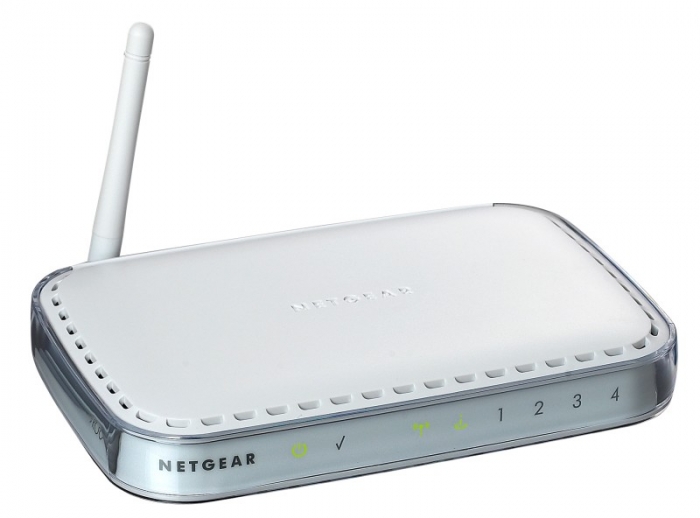 Chinese scientists have tweaked the average Wi-Fi router by introducing a router that relies on light to transmit data rather than radio waves. If you’re thinking that this is just a fantasy then you are mistaken. Office buildings in Minnesota are already users of this tweaked Wi-Fi- router. For those who are wondering how you can use light for transmission, well it uses a form of binary code and works by flickering of light at a speed which the human eye is unable to register. The following video tells more about this new invention!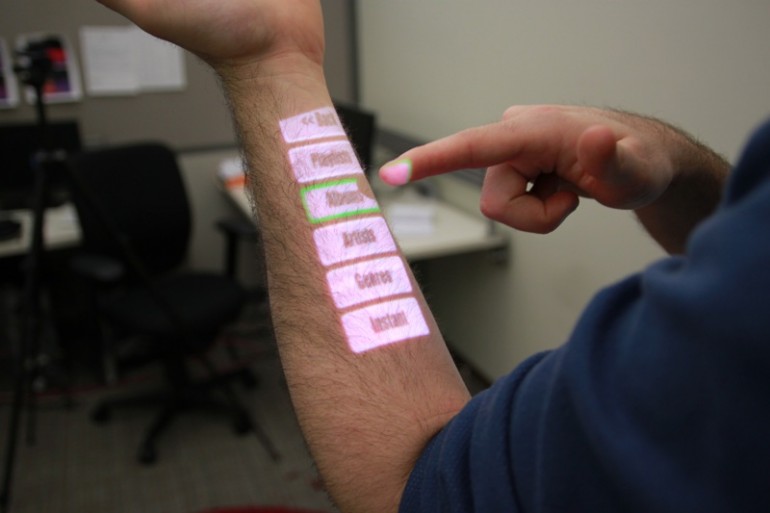


.jpg)